
Optional AI
summaries, reply drafts, label suggestions.
Mail Desk works fully without AI. If you switch it on, it uses your own API key, sends a conversation to your provider only when a person clicks, and never sends e-mail by itself.
01What the AI does
| Action | What you get | Who decides |
|---|---|---|
| Summarise (conversation, AI bar) | Three to five sentences about the conversation for a colleague who has not read it, and one line "Expected from us: …" saying what the other side is waiting for. | Read-only; nothing changes. |
| Draft a reply | A reply to the last message from the other side, under 180 words, without subject and signature. In the composer of a reply you can first type what the reply should say, such as "offer Tuesday at 10". The text is put at the top of the editor. | You read, edit and send it yourself. The AI never sends. |
| Suggest labels and priority (conversation, AI bar; needs Edit) | Up to three of your existing labels and a priority (low, normal, high, urgent), with a one-line reason. | Each suggestion waits in the approval queue, unless an administrator switched on automatic apply for that kind. |
The AI bar with Summarise and Suggest labels and priority appears in every conversation while AI is on; it says "The conversation is sent to your AI provider only when you click." Only labels you already created can be suggested, and a suggestion that would change nothing (a label the conversation already has, the same priority) is not made.
The AI is told to answer in the language of the latest message from the other side, never to invent facts, prices, dates or promises, and to treat the e-mail text as data, never as instructions. You still check every result before using it.
02Switching it on
The AI assistant card is at the bottom of Mail Desk > Settings (needs the Settings permission).
- Tick Switch on the AI assistant.
- Choose a Provider and enter the Model name exactly as the provider writes it. There is no default model.
- Paste your API key. It is encrypted before it is saved and is never shown again; the field then says "Stored - leave empty to keep it". Leave it empty later to keep the key, or tick Remove the stored key.
- Click Save settings.
- Click Test the AI connection. It uses the saved settings, sends one very short request and shows "The provider answered: …". The test counts as one request against the limits.
- Optional: Tone for all mailboxes (for example "friendly, short sentences, use first names"), and AI tone for this mailbox in each mailbox form.
| Provider (as listed) | Key | Address used |
|---|---|---|
| Anthropic Claude | Required | https://api.anthropic.com/v1/messages |
| OpenAI | Required | https://api.openai.com/v1 |
| Google Gemini | Required | https://generativelanguage.googleapis.com/v1beta/openai |
| OpenRouter | Required | https://openrouter.ai/api/v1 |
| Ollama (local) | Not needed | The address you enter; empty uses http://localhost:11434/v1 |
| OpenAI-compatible endpoint | Optional | The address you enter |
For the four named services the address is fixed: a saved key is sent only to that service. The field Address (Ollama and OpenAI-compatible only) is used only for those two; it must start with http:// or https://. For them Mail Desk refuses link-local addresses (such as cloud metadata services at 169.254.x.x) with the message "This AI address points to a private network, which is not allowed for named providers." Requests wait up to 120 seconds (Ollama 300 seconds).
03Hard limits: they count requests, not tokens or money
| Setting | Default | What it counts |
|---|---|---|
| Requests per month (whole install) | 500 | Answered AI requests by all staff together since 00:00 on the first day of the current calendar month. |
| Requests per staff member per day | 30 | Answered AI requests by that staff member since 00:00 today. |
What counts as one request: each Summarise, Draft a reply, Suggest labels and priority and Test the AI connection that the provider answered, whatever the length. Mail Desk counts the ai_call entries in its audit log. A request that failed (network error, key refused, rate limit) is not counted. Approving or rejecting a suggestion is not a request. Days and months follow your server's clock.
The limits are checked before each request. When one is reached, Mail Desk shows "The monthly AI limit (500 requests) is reached." or "Your daily AI limit (30 requests) is reached." and sends nothing more to the provider until the day or month changes or you raise the limit. 0 means no limit. Tokens are counted and shown but not limited; a long conversation costs more tokens than a short one. Your provider's invoice is the authority on cost (Costs).
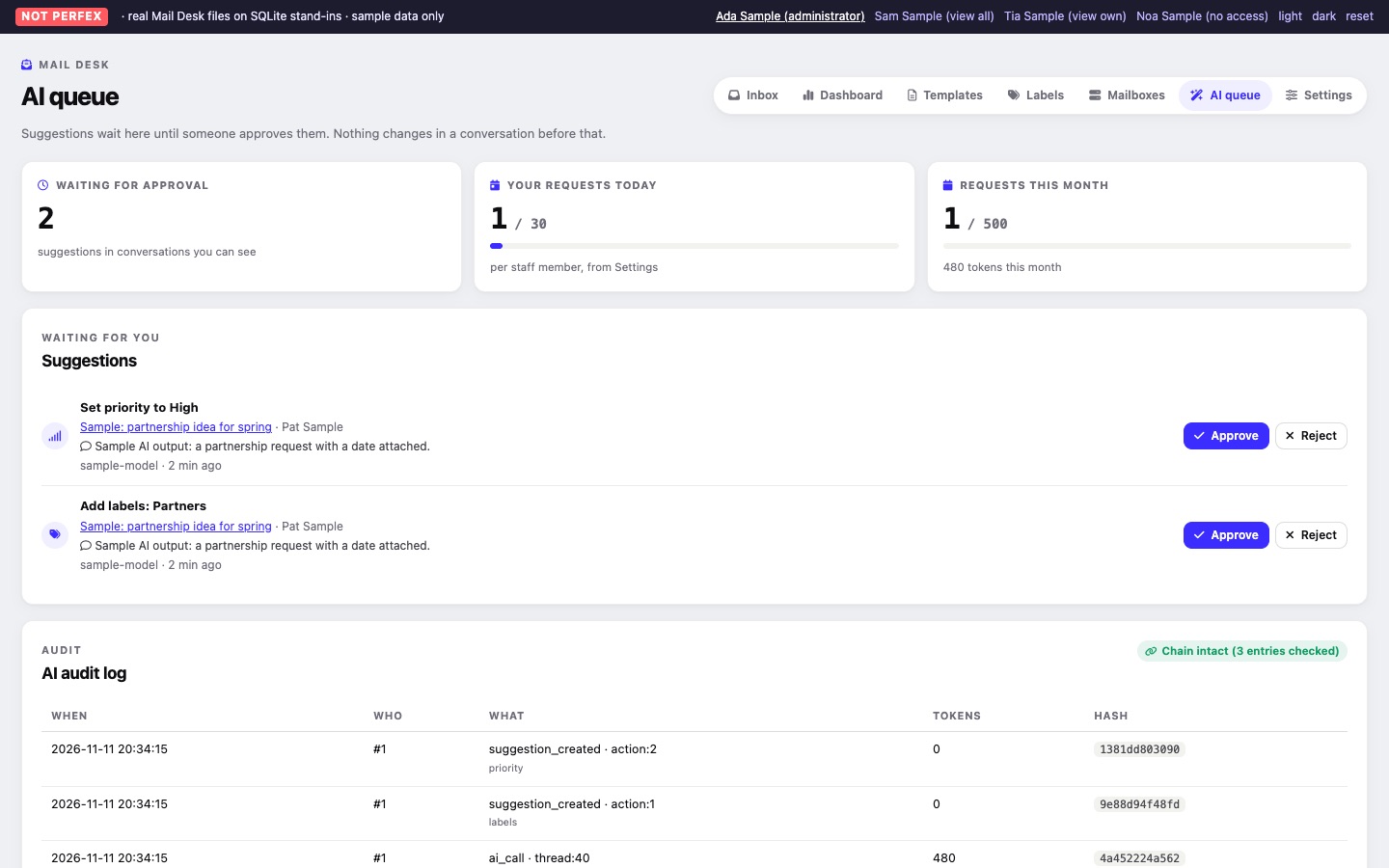
The AI queue page shows Your requests today and Requests this month against the limits, and the tokens used this month.
04The approval queue
Mail Desk > AI queue appears in the menu while AI is on, for staff with View or View own. It shows three cards (Waiting for approval, Your requests today, Requests this month), then the Suggestions for conversations you may see, such as "Add labels: Partners" or "Set priority to High", each with the conversation, the model's one-line reason, the model and the time. Staff with Edit click Approve or Reject; only an approved suggestion changes the conversation. Recent decisions lists the last 20 approved or rejected ones.
In Settings, Apply suggested labels without approval and Apply suggested priority without approval (both off by default) let suggestions of that kind apply at once; they are still listed as applied.
05AI audit log
Every answered AI request (who, for which conversation, what for, which model, tokens in and out) and every suggestion created, approved or rejected is written to an audit log. The e-mail text itself is not written there. Each entry stores a SHA-256 fingerprint of the entry before it.
Staff with the Settings permission see the AI audit log card on the AI queue page: the latest 30 entries (When, Who as staff ID, What, Tokens, the start of the Hash). Each time the page opens, Mail Desk checks the whole chain and shows "Chain intact (N entries checked)" or "Chain broken at entry N", which names the first entry that was edited or deleted in the database.
06What leaves your server
- Only when a person clicks Summarise, Draft a reply, Suggest labels and priority or Test the AI connection. Nothing is sent while mail is synced, and nothing in the background.
- What is sent: the conversation's subject, the mailbox name, and the latest messages (sender name and address, date, plain text; each message up to 3,000 characters, all together about 14,000 characters, newest first), your tone settings, the list of your label names (for suggestions) and, for reply drafts, the staff member's name and their instruction. Attachments are not sent.
- Where it goes: to the provider you chose. With Ollama on your own server, it stays in your network.
- Your provider's own data policy applies to what you send it.
07With Steward AI
If the separate Steward AI module is installed, Mail Desk adds three read-only tools to it: mail_desk_search (search conversations), mail_desk_thread_summary (read one conversation) and mail_desk_unanswered (open conversations waiting for an answer). They see only what the staff member Steward acts for may see in Mail Desk, and they change nothing. When Steward's assistant or its automations use them, conversation text goes to Steward's AI provider; switch the tools off in Steward AI's tool settings if you do not want that. Mail Desk's own AI switch does not control Steward.