
The Inbox
conversations, not loose e-mails.
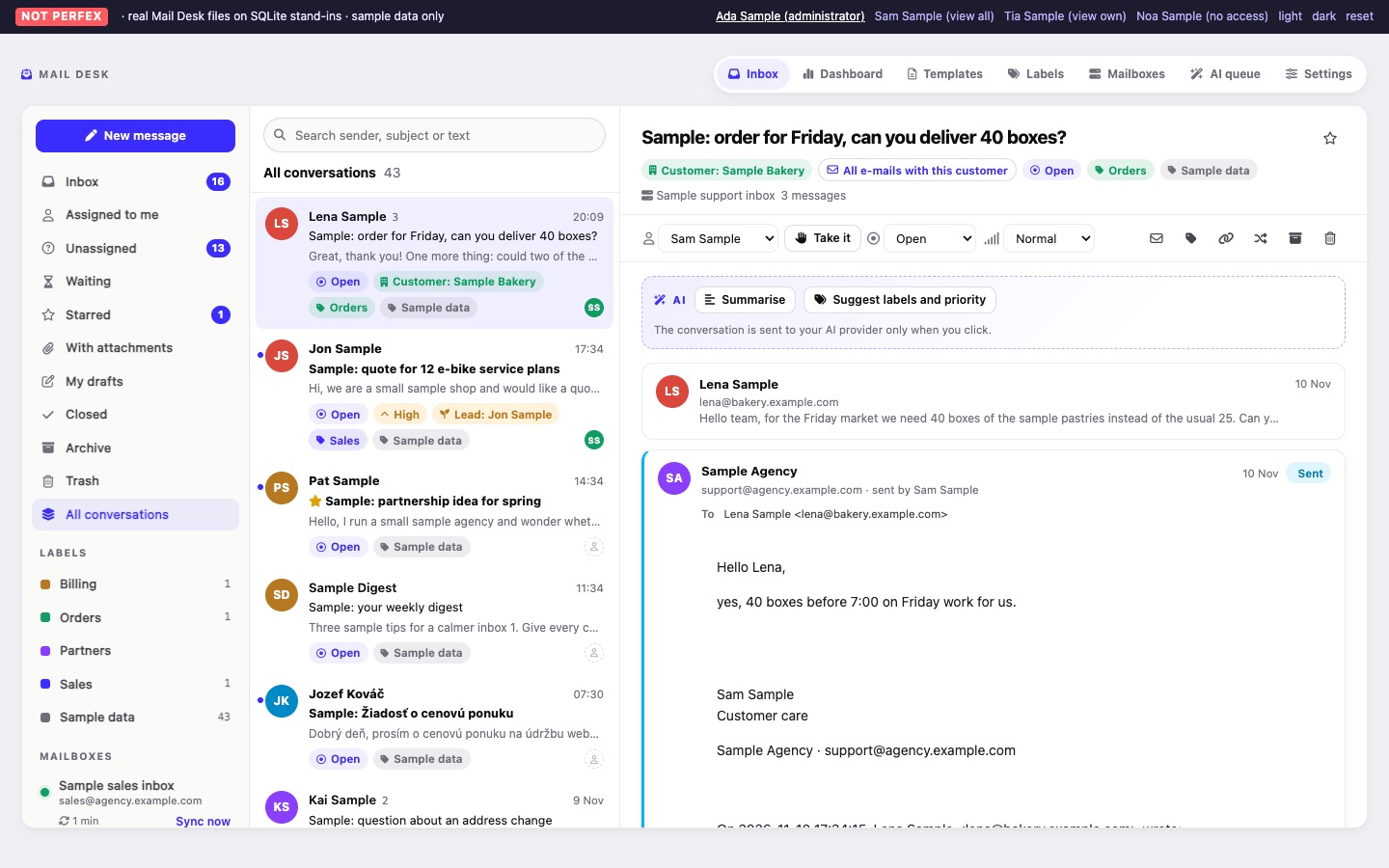
The Inbox shows conversations from every mailbox you may open. Pick a view on the left, a conversation in the middle, and read and act on it on the right.
01Layout
On a desktop the Inbox has three columns:
- Left: the New message button, the views, your labels, and the mailboxes you may open, each with its sync state (Not synced yet, the time since the last sync, Paused or Sync failed) and a Sync now link.
- Middle: a search field, the name of the view with the number of conversations in it, the active filters as chips you can remove, and the list of conversations.
- Right: the open conversation. Before you pick one it says Pick a conversation.
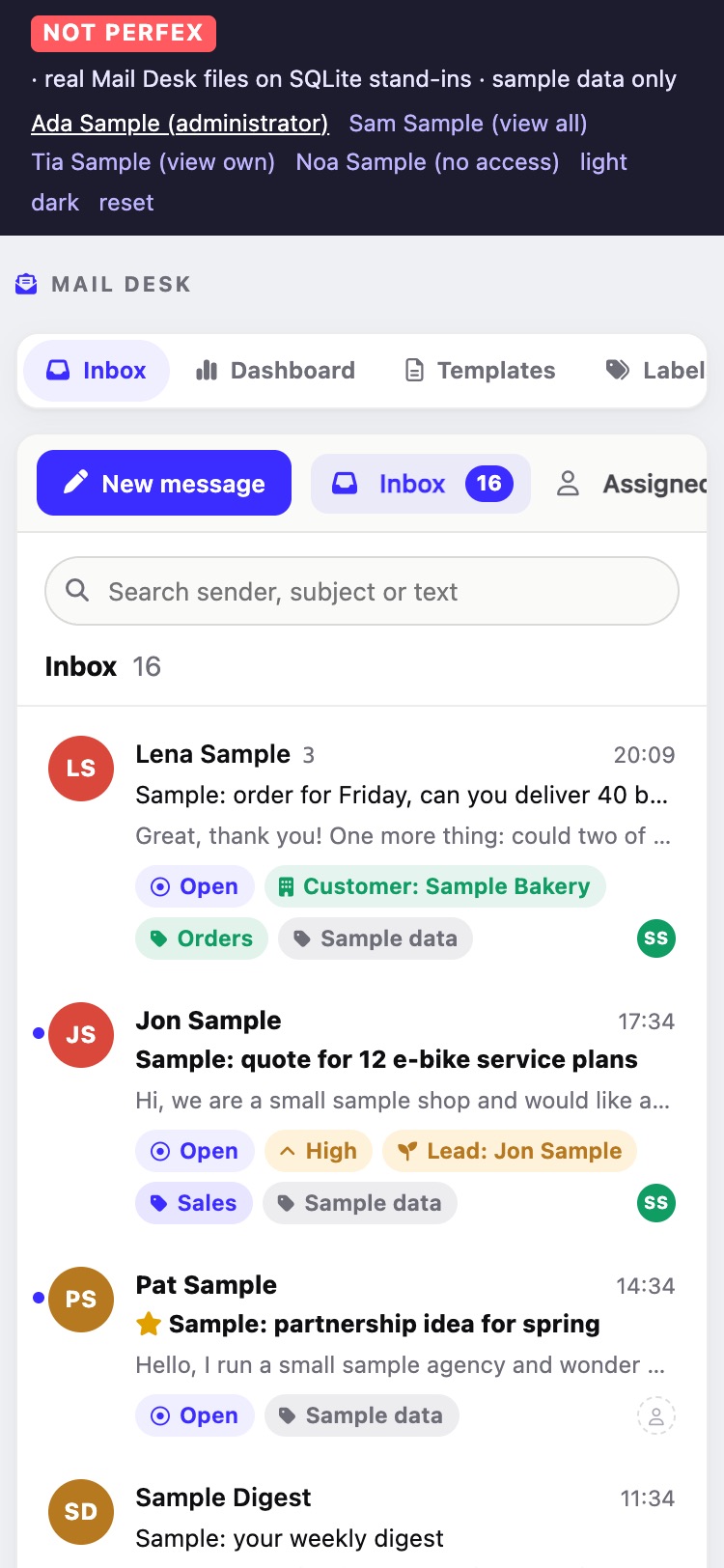
On a phone you see one column at a time; Back to the list returns to the list. The Mail Desk menu entry Inbox shows in brackets how many conversations in the inbox, among those you may see, have unread mail.
02Views
The left column lists these views, in this order. A number next to a view counts its conversations where the code counts them (Inbox, Assigned to me, Unassigned, Waiting, Starred, My drafts).
| View | Shows |
|---|---|
| Inbox | Conversations in the inbox that are not closed. |
| Assigned to me | Not closed, in the inbox, assigned to you. |
| Unassigned | Not closed, in the inbox, assigned to nobody. |
| Waiting | Conversations in the inbox with the status Waiting. |
| Starred | Starred conversations anywhere except the trash. |
| With attachments | Conversations in the inbox with at least one attachment (images embedded in the message text do not count). |
| My drafts | Your unsent messages (only with the Create permission). Drafts are personal. |
| Closed | Conversations in the inbox with the status Closed. |
| Archive / Trash | Conversations moved there. |
| All conversations | Everything except the trash. |
There is also an Open view (conversations in the inbox with the status Open). It is not in the left column; the Open figure on the Dashboard links to it.
Click a label or a mailbox in the left column to narrow the list to it. The newest activity is on top, 30 conversations per page, with Newer and Older buttons.
03Search
The field Search sender, subject or text looks in the conversation's subject, the correspondent's name and address, and the sender, subject and text of every message in the conversation. It searches inside the current view and filters; the search term shows as a chip you can remove. Up to 100 characters are used.
04The conversation list
Each row shows the correspondent (or Unknown sender), the number of messages when there is more than one, the time, a star when starred, the subject, the first words of the latest message, the status, the priority, the customer or lead it is linked to, up to three labels, a paper clip for attachments, "name replied" when your team sent the latest message, and the assignee's initials (an empty circle when unassigned). Rows with unread mail are highlighted.
05Reading a conversation
- The header shows the subject, the customer or lead badge, a link All e-mails with this customer (or lead), the status, priority, labels, the mailbox and the number of messages (Messages: 3).
- All messages, oldest first. The last two and every unread message are open; click an older one to expand it. Each shows the sender, recipients (To, Cc, and Bcc on mail your team sent), the date and attachments. Messages sent from Mail Desk say sent by and the staff member, and carry a Sent tag.
- HTML e-mail is shown cleaned, inside a frame that runs no scripts. Remote images are blocked: a bar says how many, and Show images loads them for that message (Security). Images embedded in the e-mail itself are shown.
- Attachments are listed with name and size and a Download button; every file downloads. Files that could run code (for example
.exe,.js,.html,.svg, or a double ending such asinvoice.pdf.exe) are marked download only and are always sent as a plain file. A file removed by the clean-up shows removed. - A message larger than the size limit shows a note that it was too large. Mail Desk 1.0 fetches only the headers of such a message (sender, recipients, subject, date), although the note says "headers and text"; read it in your normal mail program.
- Opening a conversation marks its received messages as read, in Mail Desk at once and on the mail server at the next sync.
06The conversation toolbar
The toolbar under the header has, from left to right (the first group needs the Edit permission):
| Control | What it does |
|---|---|
| Assignee list | Give the conversation to a staff member who can open the mailbox, or to Unassigned. The assignee gets a Perfex notification ("assigned an e-mail conversation to you") unless they assigned it to themselves or the notification is off in Settings. |
| Take it | Assigns the conversation to you. Shown when it is not yours. |
| Status list | Open, Waiting, Closed. After a reply the status changes as set in Settings (Waiting by default). New mail from the other side reopens it (New mail). |
| Priority list | Low, Normal, High or Urgent. |
| Mark as unread (envelope) | Marks the latest received message unread and goes back to the list. Anyone who can see the conversation can use it. |
| Labels (tag) | Tick labels and click Apply. Without labels it links to Create labels. |
| Link to a customer or lead (chain) | Linking by hand. |
| Convert (arrows) | Create a lead, Create a ticket, Create a task (Convert). |
| Archive / Move to the inbox | Archives the conversation, or brings an archived one back. |
| Move to trash | Needs the Delete permission. Asks for confirmation. In the trash the button becomes Restore (needs Edit). |
The star in the header (needs Edit) marks the conversation for the team; starred conversations have their own view.
Archive and trash also move the conversation's messages on the mail server, and Move to the inbox and Restore move them back (What is copied back).
07Who replied, who is looking
- Replied by: when your team sent the latest message, the conversation shows "Replied by name · time ago" and the list shows "name replied", so two people do not answer the same e-mail.
- Looking and writing now: while a conversation is open, a bar shows "name is looking at this conversation." or, when a colleague has a reply open, "name is writing a reply right now. Check before you answer, so the customer does not get two replies." A colleague counts as present for 90 seconds after their browser last reported in (Presence window).
- If a new message arrives in the conversation while you have it open, Mail Desk tells you.
08Labels
A conversation can carry any number of labels. Manage them in Mail Desk > Labels (needs Edit): a name (up to 60 characters, unique, for example "Invoice") and one of seven colours (Indigo, Cyan, Green, Amber, Coral, Violet, Grey). The list shows how many conversations use each label. Deleting a label needs the Delete permission and removes it from every conversation.
09Internal notes
Under the messages, Internal notes (only your team sees these) are written for colleagues and are never sent to anyone. Writing one needs Create; a note can be up to 5,000 characters. Each note shows its author and time. Authors can delete their own notes; administrators can delete any note. When you convert an e-mail into a lead, ticket or task, Mail Desk adds a note such as [lead #12] with your name.
10Sync now
When you are waiting for a message, Sync now under a mailbox in the left column (or on Mail Desk > Mailboxes) reads it at once instead of waiting for the next cron run. It reports "Mailbox synced: N new messages." and, when there is more, "More mail is waiting; the next cron run continues." It is offered only for active mailboxes.