
Customers and leads
every e-mail on the right record.
Mail Desk links each conversation to the customer or lead whose e-mail address it comes from, shows those conversations on the customer's profile, and turns an e-mail into a lead, a ticket or a task.
01Automatic links
Each conversation has a correspondent: the address of the last person who wrote to you in it (or, while only your team has written, the first recipient of your latest message). Mail Desk looks that address up in Perfex:
- Customer contacts first. If a contact has that e-mail address, the conversation is linked to the contact's customer (active contacts and primary contacts are preferred when several match).
- Then leads. Otherwise, if a lead has that address, the conversation is linked to the lead (leads that are not junk or lost are preferred, then the newest).
- Otherwise unknown. The conversation shows an Unknown sender badge until someone links it.
The check runs when mail arrives, for every record in Perfex regardless of who is looking, and every cron run checks again (up to 200) unlinked conversations with activity in the last 30 days, so mail from someone you add as a contact or a lead later still lands on their record. Addresses are compared without regard to upper and lower case.
02Linking and unlinking by hand
Needs the Mail Desk Edit permission. In the conversation toolbar, the chain icon (Link to a customer or lead) opens a small panel:
- Find a customer or lead. Type at least two characters of a company, name or e-mail; matching records you may see in Perfex appear under the field. Pick one.
- Or enter it by hand: choose the Record type (Customer or Lead), type the Record ID and click Link.
Mail Desk confirms with "Conversation linked." A record you may not see in Perfex cannot be linked ("This customer or lead was not found."). When the conversation is already linked to a record you may see, the panel shows it with an Unlink button ("Conversation unlinked. It will not be linked automatically again.").
A link or unlink made by a person is final: Mail Desk never changes that conversation's link automatically again.
03The sender badge
In the conversation and the list, a badge shows Customer: company, Lead: name or Unknown sender. In the conversation header the customer and lead badges open the record in Perfex, and a second link, All e-mails with this customer or All e-mails with this lead, filters the Inbox to that record.
If a conversation is linked to a record you may not see in Perfex, the badge says only Known contact, without name or link (Perfex rights).
04The Emails tab on a customer
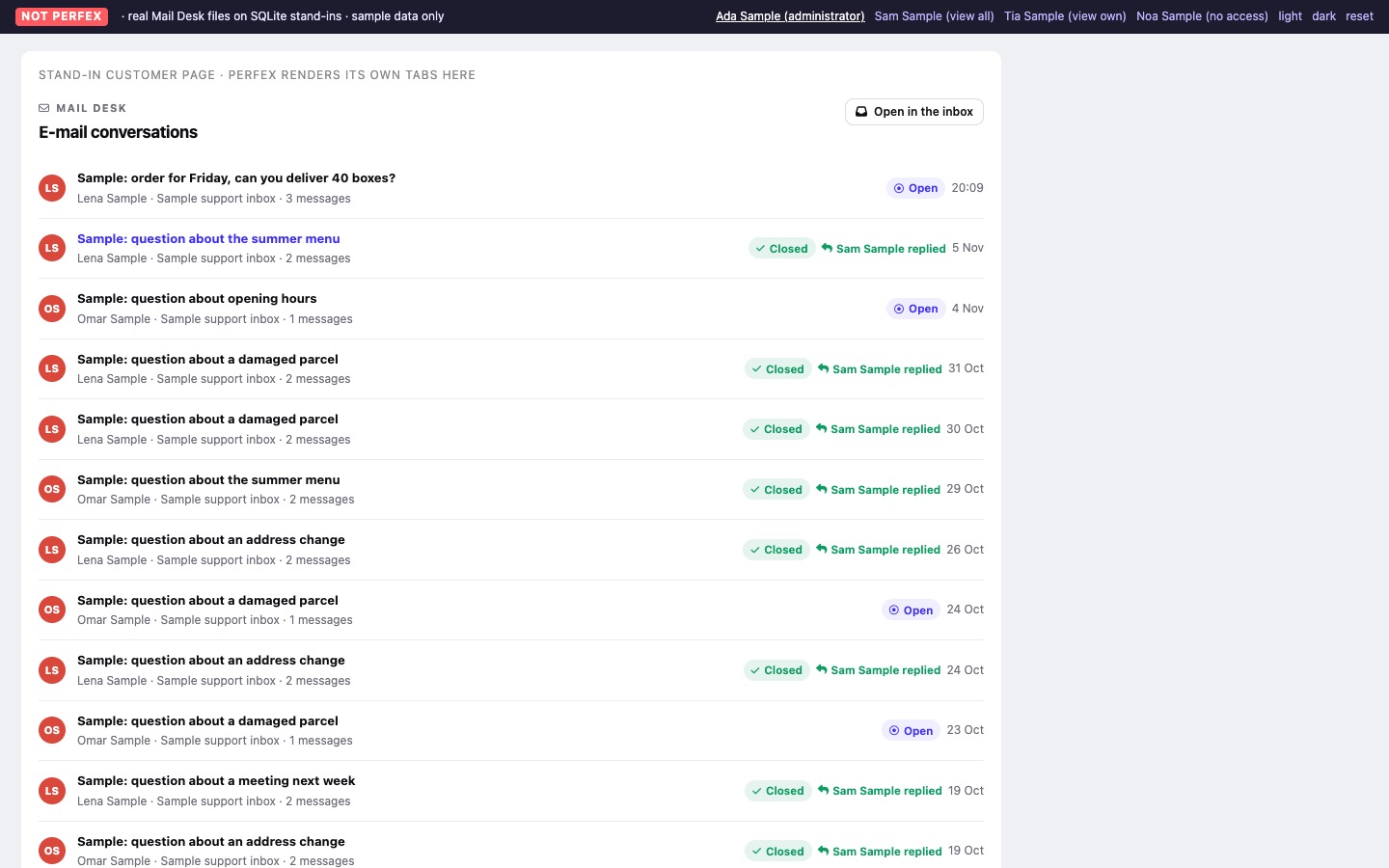
Every customer profile gets an Emails tab for staff with View or View own. Its card E-mail conversations lists the 15 most recent conversations linked to that customer (not the ones in the trash), each with the subject, the correspondent, the mailbox, the number of messages, the status, who replied last and the time. Each entry opens the conversation in the Inbox. Open in the inbox shows the full list there; when there are more than 15, a line says how many there are in total.
Without linked conversations the tab says "No e-mails with this customer yet". The tab follows the same rules as the Inbox: someone with only View own sees only their own conversations there too (View versus View own).
05Leads: no tab in 1.0, filter the Inbox instead
Conversations are linked to leads in the same way as to customers. Version 1.0 does not add an Emails tab to the lead page, because no verified Perfex hook for a lead tab was available. To see all conversations with a lead:
- Open any conversation linked to the lead and click All e-mails with this lead in its header.
- The Inbox switches to the view All conversations with a chip Lead: name; remove the chip to see everything again, or click Open the record to go to the lead.
The filter is a normal Inbox address (admin/mail_desk/inbox?rel_type=lead&rel_id=12 for lead 12), so you can bookmark it. You can also search the Inbox for the lead's e-mail address.
06Convert an e-mail into a lead, ticket or task
The arrows icon (Convert) in the conversation toolbar offers Create a lead, Create a ticket and Create a task. Each item appears only when you may use it:
- All three need the Mail Desk Edit permission.
- Create a lead needs Perfex's Create permission for leads and is offered only for a conversation that is not linked yet.
- Create a task needs Perfex's Create permission for tasks.
- Create a ticket has no Perfex permission of its own here; anyone with Mail Desk Edit may use it.
- A ticket or task is not offered for a conversation linked to a customer or lead you may not see in Perfex.
Perfex creates the record itself, through its own functions, so its activity log, notifications and hooks work as usual. Mail Desk then shows "Lead #12 created and linked to this conversation.", "Ticket #12 created." or "Task #12 created." and adds an internal note such as [ticket #12] with your name.
| Into | What is created |
|---|---|
| Lead | Name and e-mail of the correspondent; the subject and the first received message (up to 8,000 characters) as the description; assigned to you; status and source from Settings or Perfex's defaults. The conversation is then linked to the new lead. |
| Ticket | The subject and the first received message; for a conversation linked to a customer, the ticket belongs to that customer and contact, otherwise it carries the correspondent's name and e-mail. Assigned to you, in the department from Settings (or the first department). |
| Task | The subject as the task name; the correspondent and the first received message as the description; related to the linked customer or lead when there is one; you as the assignee. |
If Perfex does not create the record, the message is "Perfex did not create the record. Check the lead status and source, or the ticket department, in Settings."