
Templates and signatures
write common answers once.
Reply templates fill in the subject and body with merge fields such as the contact's first name. Signatures are added automatically to every new message and reply.
01Reply templates
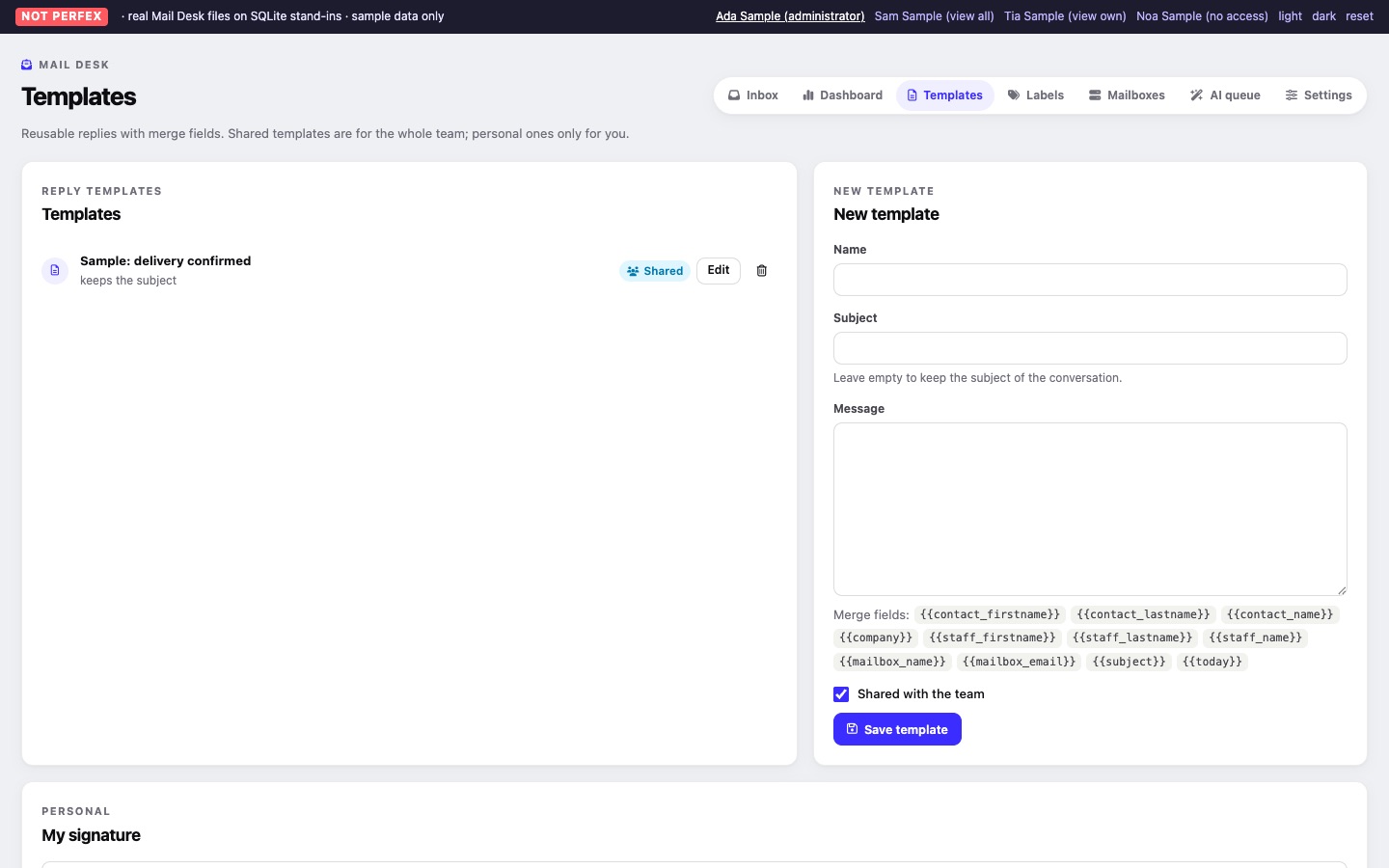
Mail Desk > Templates (needs the Create permission). The left card, Reply templates, lists the templates you may use, each marked Shared or Personal; a template without a subject says keeps the subject. Edit and Delete appear on the templates you may change. The right card is the form for a New template or the one you edit:
| Field | Notes |
|---|---|
| Name | Required, up to 120 characters. Shown in the composer's Insert a template list. |
| Subject | Optional. "Leave empty to keep the subject of the conversation." |
| Message | Required. The field takes HTML (for example <p>…</p> for each paragraph); it is cleaned when saved. Under it, Merge fields: lists the fields you can use. |
| Shared with the team | Shown only to staff with the Edit permission (on by default for a new template). Others see "This template is personal: only you can use it." |
- Personal templates are visible only to the person who made them.
- Shared templates are visible to everyone with Create. Only staff with Edit can share a template or change or delete a shared one; everyone can change their own.
- In the composer, Insert a template puts the text, with the merge fields filled in, at the top of the editor. The template's subject is used only when the subject field is empty (Composer).
02Merge fields
Write a field in double curly braces, for example Hello {{contact_firstname}},.
| Field | Filled with |
|---|---|
{{contact_firstname}} | First name of the first To recipient |
{{contact_lastname}} | Last name of the first To recipient |
{{contact_name}} | Full name of the first To recipient |
{{company}} | The customer's company, or the lead's company |
{{staff_firstname}} | Your first name |
{{staff_lastname}} | Your last name |
{{staff_name}} | Your full name |
{{mailbox_name}} | The name of the mailbox the message is sent from |
{{mailbox_email}} | The address of that mailbox |
{{subject}} | The subject of the message you are writing |
{{today}} | Today's date, as YYYY-MM-DD |
The contact fields and {{company}} come from Perfex when the first To address belongs to a customer contact or a lead that you may see in Perfex; otherwise the contact fields come from the name typed with the address and {{company}} stays empty. A field without a value becomes empty. A name in braces that is not on this list is left as you typed it, so you notice a typing mistake.
03Signatures
There are two signatures, and both are added when you start a new message, reply or forward:
- Your personal signature, in the My signature card at the bottom of Mail Desk > Templates (needs Create). Click Save signature.
- The mailbox signature, the field Mailbox signature (HTML) in the mailbox form (mailbox form), for example the company's address and phone number.
The personal signature comes first, the mailbox signature under it. You can still edit the text before sending. Both fields take HTML. Signatures and templates are cleaned when saved: scripts, forms, embedded frames and similar are removed. Images linked by a web address are kept, so a logo in a signature works.