
Writing and sending
from the mailbox, with a copy in Sent.
Replies and new messages leave through the mailbox's own SMTP server, so recipients see a normal e-mail from your address. Writing needs the Create permission.
01Starting a message
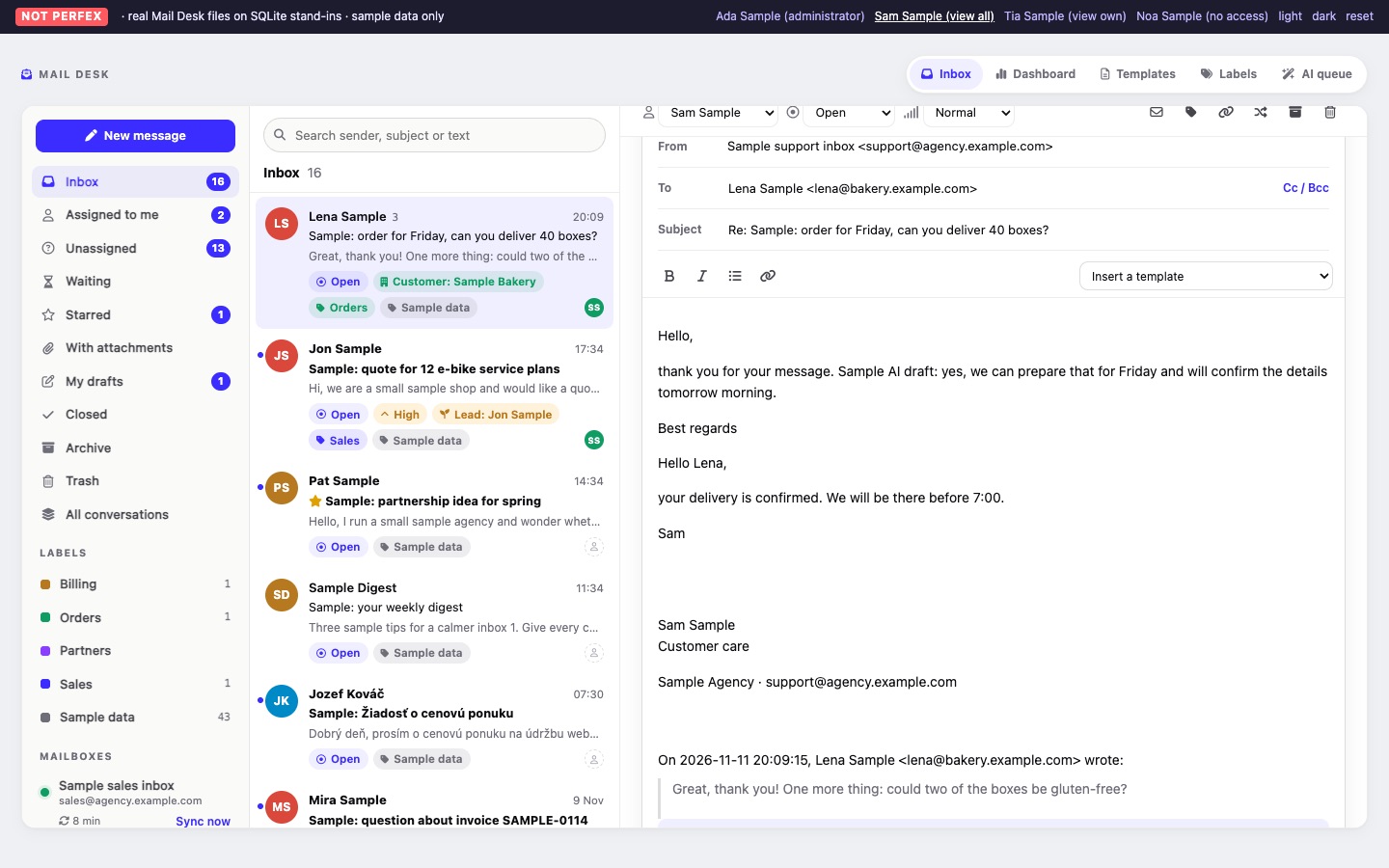
New message is at the top of the Inbox's left column. Reply, Reply all and Forward are under every message of a conversation. The composer opens under the conversation, with the mode as its title.
| Mode | Recipients | Subject and body |
|---|---|---|
| Reply | The sender of the message, or its Reply-To address when it has one. Replying to a message your team sent goes to that message's To recipients again. | "Re: " plus the subject (not added twice); your signatures, then "On date, sender wrote:" and the quoted message. |
| Reply all | As Reply, plus the other To and Cc recipients in Cc, without the mailbox's own address and without duplicates. | As Reply. |
| Forward | Empty. | "Fwd: " plus the subject; your signatures, then "Forwarded message" with its From, Date, Subject and To, and the message. Its attachments are attached again. |
| New message | Empty. | Empty subject; your signatures. When you may use more than one mailbox, the From list lets you choose one (the first active mailbox you may use is preselected). |
Starting the same kind of reply to a message you already have a draft for opens that draft again. When you open a conversation where you left an unsent reply, a bar says "You have an unsent reply in this conversation. Continue writing".
02Recipients
To has its own field; Cc / Bcc shows the two other fields. Separate addresses with commas. As you type (from two characters), Mail Desk suggests addresses from active staff members and, depending on your Perfex rights, active customer contacts and leads (Perfex rights). At most 100 recipients per message. Bcc recipients are not shown to the others; Mail Desk keeps the Bcc list on the copy it stores.
03Drafts
Every message is a draft until it is sent. Drafts are saved as you type (a few seconds after you stop typing; the composer shows "Draft saved at time"), and Save draft saves at once. Drafts are personal: only the person who started one sees it, under My drafts. Discard deletes the draft and its attachments after a confirmation.
A draft cannot be sent twice ("This message is already being sent."). If a send was interrupted, the draft is released again after 15 minutes.
04The editor
The text field has buttons for Bold, Italic, a bulleted List and Insert link. Without JavaScript the composer still works as a plain HTML text field.
05Attachments
Click Attach and choose a file; it uploads at once and is listed with a Remove link. Each file can be up to 10 MB by default (Max upload), and all attachments of a message together up to 25 MB (Max message; Settings). Your PHP upload limits must allow the same sizes. If the mail server announces a lower size limit, it refuses the message and Mail Desk shows both sizes.
06Sending
- Click Send. Mail Desk saves the draft and builds the e-mail with your text as HTML and plain text, from the mailbox address and its Sender name (or the mailbox name). Replies carry the
In-Reply-ToandReferencesheaders, so the other side's mail program keeps the conversation together. - It sends it through the mailbox's SMTP server. If sending fails, nothing is stored as sent, the draft stays, and the message says what the server answered.
- It stores the sent message in the conversation ("Message sent."), sets the status (Waiting by default; Open in Settings leaves the status as it is) and saves a copy in the server's Sent folder (Sent folder).
A message needs at least one recipient ("Add at least one recipient.") and either some text or an attachment ("Write a message or attach a file."). A paused mailbox cannot send.
07Templates and AI drafts in the composer
Insert a template (shown when you have templates) puts the template text, with its merge fields filled in, at the top of the editor, above your signatures. The template's subject is used only when the subject field is still empty, so a reply keeps its "Re:" subject (Templates and signatures).
With AI switched on, replies (not new messages) get an AI row under the editor: an optional field "What should the reply say?" and Draft a reply. The suggested reply is put at the top of the editor; you read it, change it and send it yourself (Optional AI).